Step by step
Where is my data stored - does anything go to the cloud or to your company?
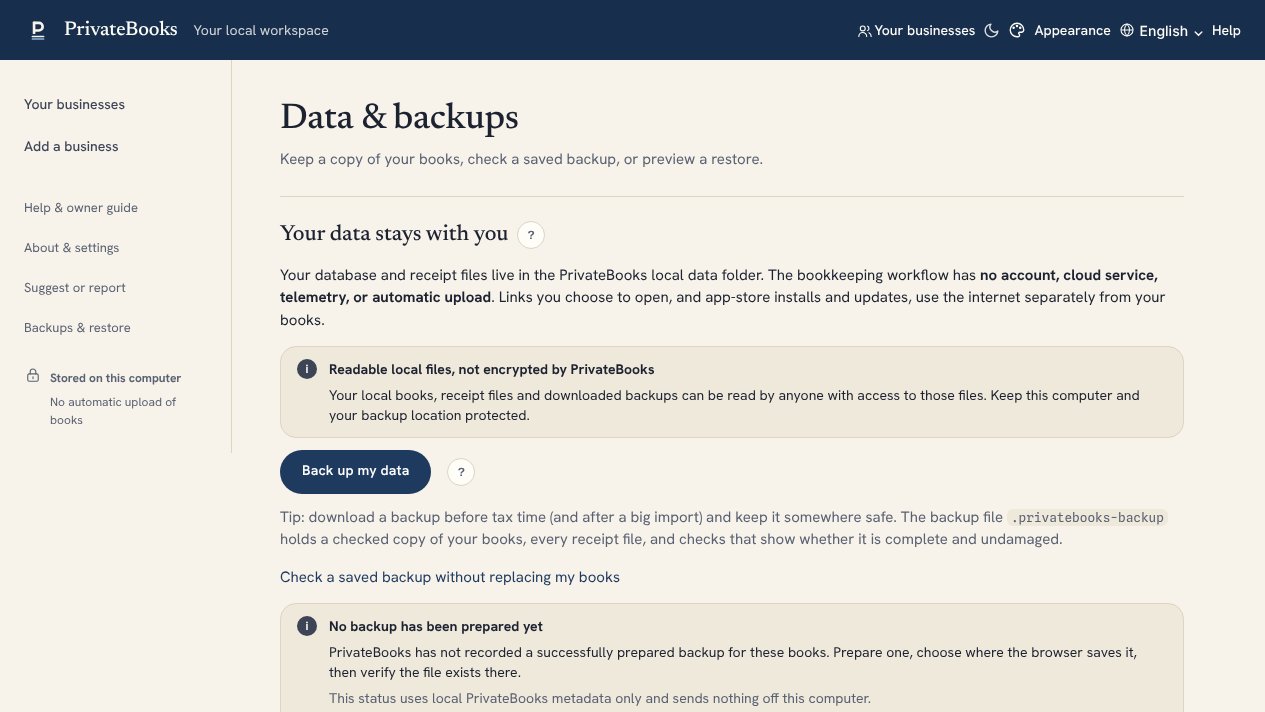
Everything stays in the PrivateBooks data folder on this computer: a database file with your books, your receipt files, your settings and recovery copies. PrivateBooks has no cloud bookkeeping service, no telemetry and no automatic upload of financial data, and its makers cannot see your books. Links to official help, the IRS or release status connect only when you open them. An app store handles its own purchase, install and update traffic.
Do I need to create an account or sign in?
No. There's no account, no password, and no sign-in screen. You just open PrivateBooks and start working - because everything is local, there's nothing to log into.
How do I back up my books?
Open Backups & restore in the left menu (or About & settings) and choose Back up my data. That downloads one dated .privatebooks-backup file with a copy of your books, every attached receipt, and checks that show whether the file is complete and undamaged. Save it somewhere safe, such as a USB drive or other storage you control. A good habit is to back up before tax time and after a big import.
My computer is dying / I got a new one - how do I move everything?
On the old computer, choose Back up my data and copy the .privatebooks-backup file to the new computer using storage you control. On the new computer, install PrivateBooks, open Backups & restore, open Restore from a backup, choose that file and confirm. Your books and attached receipts move together. Older .db backups still open, but they cannot hold receipt images.
How do I move from the direct-download app into a store version?
No store version has been released, and no verified public v4 installer is available yet. In current development builds, a store build uses its own local data folder and does not silently scan or move the direct-download edition's files. In the direct-download app, open About and choose "Back up my data." Then open the store build, go to About, choose Import existing PrivateBooks data, and select that .privatebooks-backup archive. Database-only .db files are not accepted for this store migration path because they cannot carry receipt files.
Is it safe to keep sensitive financial data in this app?
PrivateBooks keeps your books in its data folder on this computer and has no cloud bookkeeping service, telemetry or automatic upload of financial data. Protect the computer with its normal login and disk encryption, and keep backups in storage you control. Before a restore, PrivateBooks checks that the backup file is complete and undamaged, and saves a recovery copy of your current books first. These steps reduce risk, but they cannot on their own make the computer, the backup location, or anything you export or share safe.
Why does the Store edition ask me to agree before I start?
The Microsoft Store and Mac App Store editions ask once before they keep any of your records. The agreement says what is kept, where, and how it is protected: in the PrivateBooks data folder on this computer, protected by your computer sign-in, and not yet encrypted by PrivateBooks itself. Until you agree, nothing of yours is saved. You can still try the demo and read the help, and you can read the agreement again under About & settings.
How do I report a problem or suggest something?
Choose Suggest or report in the left menu. Say what you were doing and what happened, then choose Prepare my message. PrivateBooks sends nothing and saves nothing. You copy the message into your own email and send it to the address shown.
Educational material about how the app works, not tax advice. Review final figures with
your tax preparer.