Statement coverage shows the months you have proof for
010203040506070809101112
Each month you confirm from a statement fills in. A gap does not mean money is missing; it means no statement covers those dates yet.
Training · Lesson 2 of 6
Bring in statement files you downloaded yourself and check the preview before anything is saved.
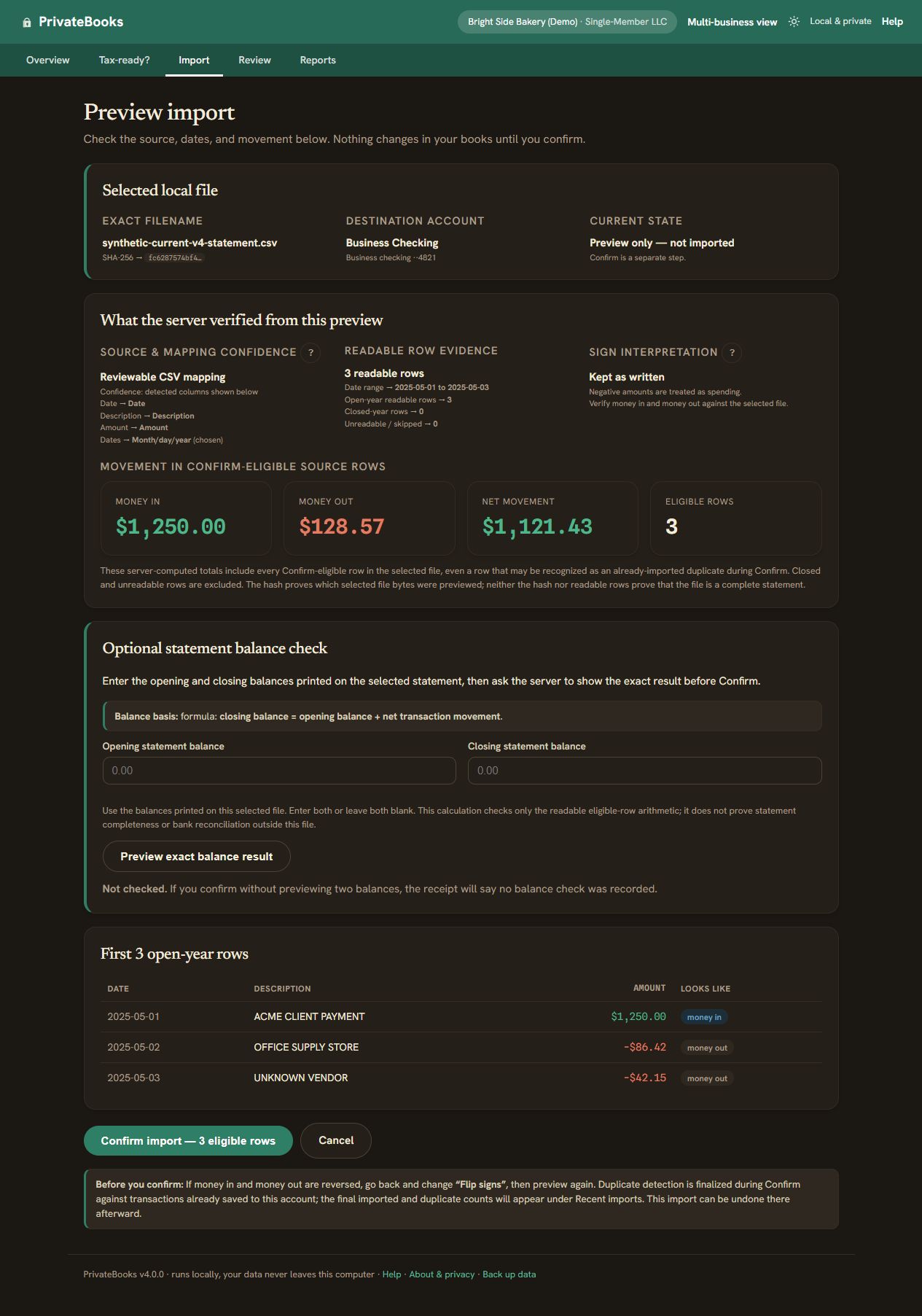
Pictures show the built-in demo business, not real books.
Each picture uses example numbers. Reports shows the same picture with your own numbers.
Each month you confirm from a statement fills in. A gap does not mean money is missing; it means no statement covers those dates yet.
Log into your bank or credit-card website and look for Download, Export, or Activity, then choose CSV (sometimes called "Comma delimited" or "Spreadsheet"). A PDF statement works too. Save the file somewhere easy to find, then pick the matching account and choose it on the Add activity screen.
CSV is more reliable and is the recommended choice. PrivateBooks reads the common CSV layouts for you, whether your bank uses a single Amount column or separate Debit/Credit columns, and handles dollar signs, commas, and dates automatically. PDF import works with the statement PDFs you download from your bank's website - not scans or photos of paper statements - and is best-effort because bank layouts vary. When a PDF can't be read safely, the preview says exactly why (password-protected, scanned, or no transaction rows) and what to do instead. Either way, you review everything in the preview before anything is saved.
"Flip signs" reverses every amount in a file, so money in becomes money out and the other way round. Most banks write spending as a negative number, but some credit-card files write charges as positive numbers. If the preview shows your spending as money in, choose Swap money in and money out on the preview. PrivateBooks reads the same file again with the signs reversed, so you do not need to choose the file a second time.
PrivateBooks fingerprints transactions by date, amount, and description and shows previously imported matches in the preview before saving. This helps prevent repeat imports while keeping genuinely identical rows from the same file. Inspect the preview and statement coverage yourself: duplicate detection cannot prove that every statement or row is present.
The preview says why the PDF could not be read. A scanned or photographed statement is a picture, so there is no text to read. A password-protected PDF cannot be opened: open it in your PDF viewer with the password and save an unlocked copy. A summary or notice page has no transaction rows. The usual fix is to download a CSV from your bank instead, which is more reliable. If you only have a paper statement, use Add one transaction on the Add activity screen.
The file fingerprint (SHA-256) on the preview is a code that identifies the exact file you chose; if the file changes, the code changes. If you enter the opening and closing balances printed on the statement, the balance check compares them with the rows PrivateBooks read. A match is a good sign, but it does not prove that the file covers the whole statement period, that every row was readable, or that the account is reconciled with your bank. Keep the original statement and go over coverage with your preparer.
PrivateBooks knows the dates of the transactions in a file, but not the period the statement covers. Open Statements, choose Confirm statement dates for the file, and enter the first and last day of the statement. Add the opening and closing balances if you have them. For a CSV download, use the date range you chose at the bank. Confirmed periods show which months are covered and where a statement may be missing.
On the import preview, choose This PDF did not read correctly? Make a private layout report. The report shows how the PDF is laid out with every letter replaced by x and every digit by 9, so it holds no name, account number, date or amount. PrivateBooks does not store or send it. You decide whether to email it.
Educational material about how the app works, not tax advice. Review final figures with your tax preparer.